Zooming in Scrivener
Text Zooming
Zooming the text makes it easier to read. Changing the default zoom can make text larger to help with editing without changing the text font size.
There are five ways to affect the Zoom function in Scrivener.
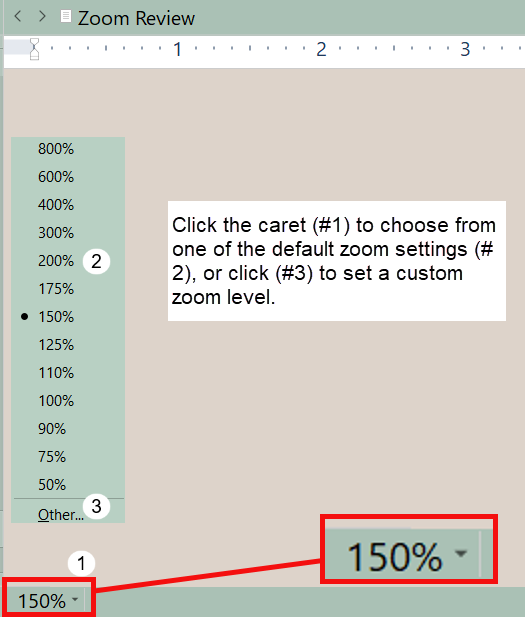
1. Change the zoom level of the text with the lower-left corner drop-down menu in the editor window.
2. Click the CTRL key and roll the mouse scroll wheel to rapidly increase or decrease the zoom level. This works in the Editor window, Copyholder view, Quick Reference Panels, Composition Mode, Inspector Notes, and the Scratchpad as well.
3. Keyboard commands Ctrl (+) = will increase zoom or Ctrl (+) - will decrease zoom the same way as the scroll wheel and in the same places as above.
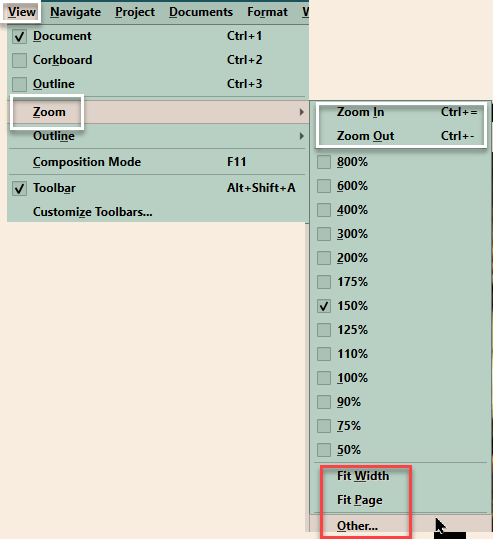
4. Use the Menu command View > Zoom options.
You can zoom in or out by a set amount or choose a custom level.
Other menu options here include:
Fit With adjusts the magnification to fit the current width of the editor window. (red box)
Fit Page adjusts the zoom to fit the whole pdf page inside the editor window. (red box.)
The Other option allows you to set a custom zoom level. (red box)
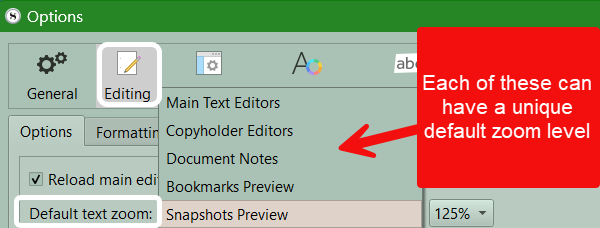
5. The Options Panel can set the default editor zoom levels for your entire project. (File > Options > Editing) This sets a default zoom to initially view the editor window in but does not affect any of the above methods.
Use the Menu command File> Options > Editing > Options
Each of the five areas below can have its own unique Zoom preset.
Note: Currently this option is not available on the Mac.
Important things you cannot do with zoom:
Note: Using the right-click function inside an editor window or a QRP does not have a zoom function option.
The QRP panel does not have a zoom option in its footer bar.
You cannot zoom the Corkboard or Outliner views.
Zoom facts to remember:
Each editor window can be individually zoomed including the copy holder view (which has no zoom menu in its footer) when multiple editor windows are open at once (split view).
Anywhere the Ctrl key and mouse wheel can be used to change the zoom level, the keyboard commands work as well.
Each QRP panel can adjust its zoom level using the Ctrl key and mouse wheel or keyboard shortcuts listed above.
Adjusting the zoom on one open QRP panel does not affect any of the other open QRP panels.
The current zoom level has no impact on any print or compile outputs.
Composition Mode:
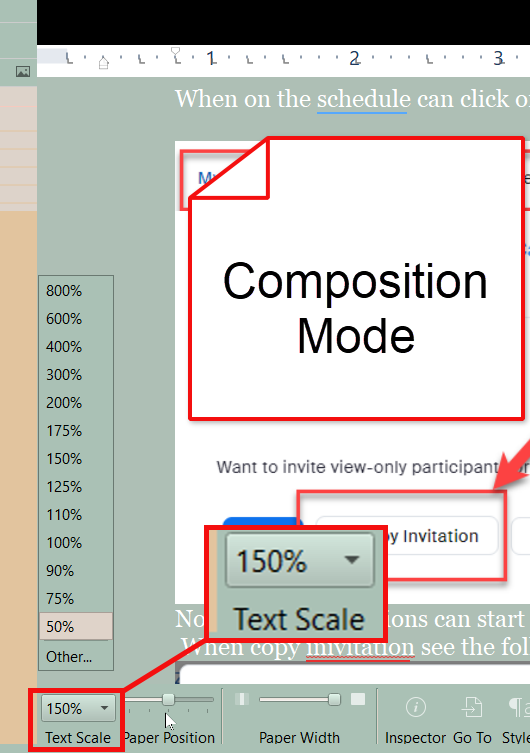
The Composition Mode view does have a zoom option in the lower left footer which is labeled Text Scale.
Zooming with Images and Pdf files
Images and Pdf’s have additional options through the right-click menu when you hover over an image or Pdf.
Zooming and choices on how to view the Pdf include these right-click options:
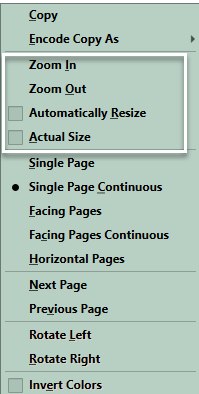
The actual size option scales the PDF to its native scale.
The automatically resize option keeps the PDF sized to the width of the editor window, even if this changes size.
Image right click options include:
Zooming and rotating the image among other choices
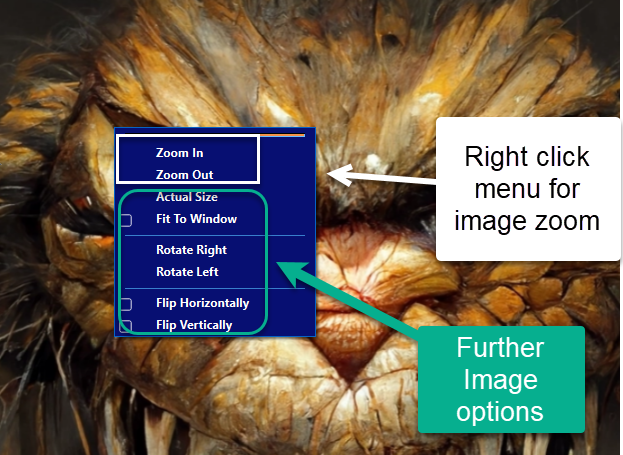
Double clicking on an image brings up the tool shown below to manipulate and resize images. These represent the same choices displayed with the right-click menu. Hovering over each symbol will give a brief description.
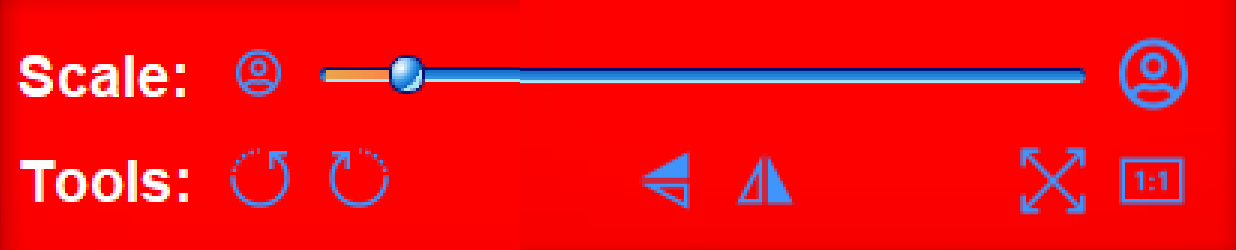
Scale is a slider which quickly changes image zoom.
Hopefully, now you will get the most out of Scrivener’s Zoom feature to making writing and creating easier.