Word Counts and Word Targets in Scrivener
How do we obtain the word counts for individual or multiple selected documents?
Word counts for multiple Documents:
Method 1: Use the Scrivenings View
Simply select (Highlight) multiple documents in a group or widely scattered ones when in the Editor view. Selecting Multiple files will automatically switch to the Scrivenings View, and the total number of words in the selected group and the total word targets of the documents will appear in the middle of the Editor footer. (Note: Documents do not require Word Targets, so the word count can easily exceed the sum of the word document’s individul targets selected, especially if several have no target at all.) Any document’s word targets in the selected files will be added together.
Note:
Clicking on the footer’s word total from the group of files will show more detailed info as it would for a single document. Hovering the mouse over the word totals will show an abbreviated version of the word count details shown below.
Below you see the word count of a chapter, but if you click a large group of files like the Act in a book, then it may take a few moments to come up with the total count.
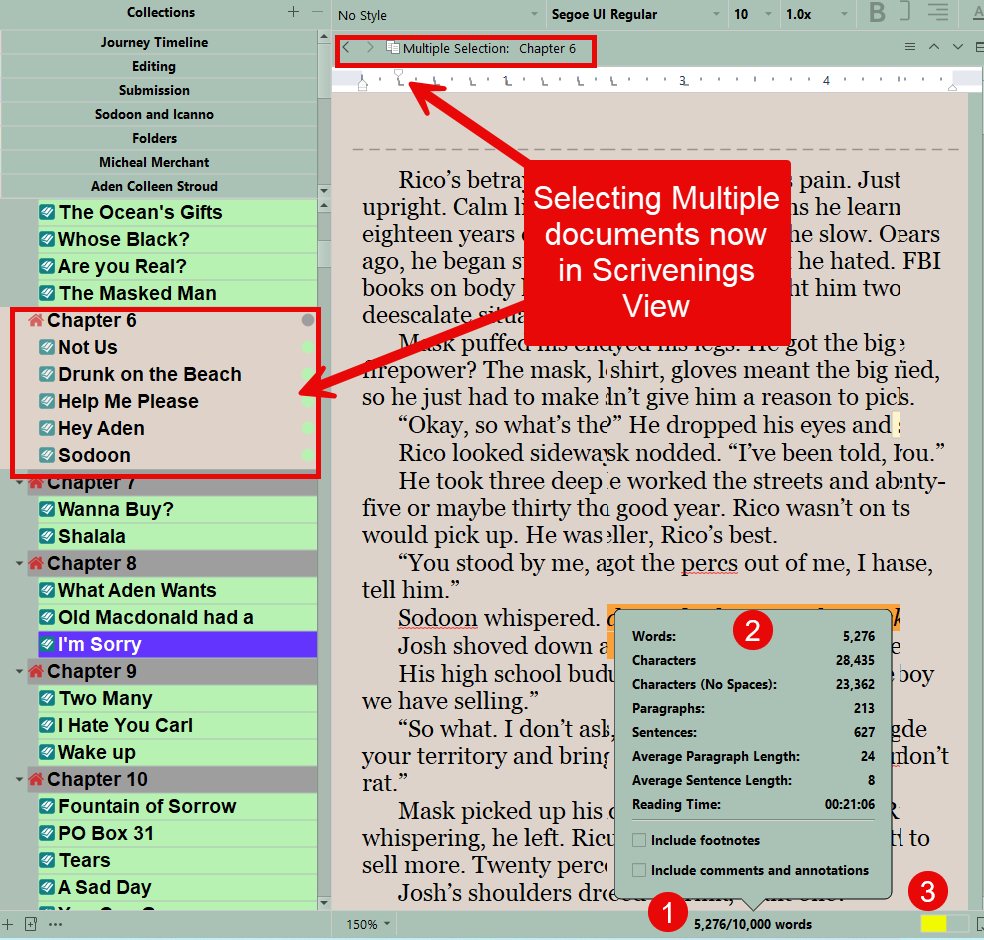
1. The total word count and targets for the selected documents.
2. Clicking on the number gives more detailed information as you would see with the word count for a single document.
3. This is the visual representation of #1 in a progress bar.
Method 2: Use the Statistics Panel
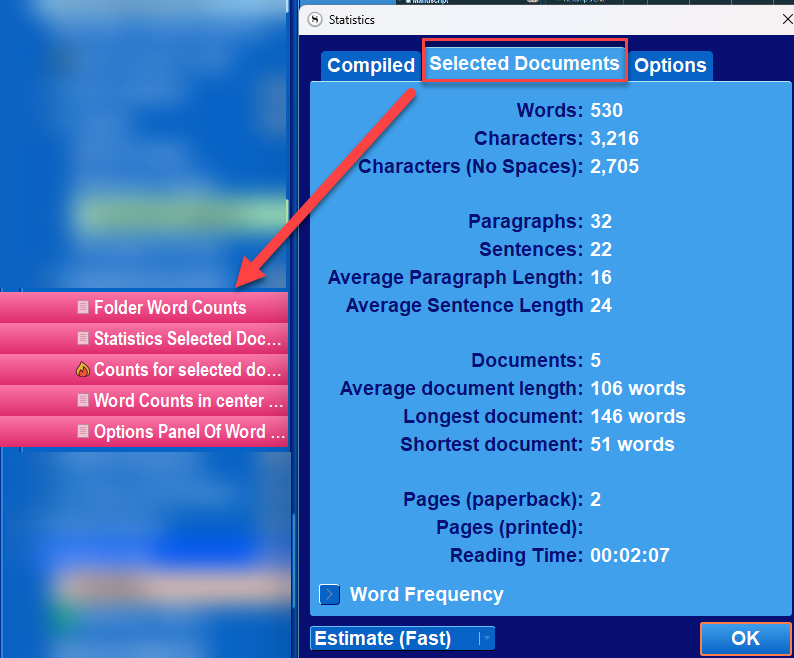
Highlight/select files/folders and then use the Menu command Project > Statistics and hit the tab for Selected Documents
Reach the Statistics Panel by:

Statistics Toolbar Icon
a. Using the Statistics Toolbar icon if added.
b. Using the Menu command Project > Statistics
c. Use the Keyboard shortcut (Windows key, + Ctrl + Shift + S)
The middle tab on the Statistics panel is Selected Documents. This will display statistical information including word counts and more on ONLY the group of documents you selected to collect information on.
This is the most accurate counter in the software and will take the time to perform detailed calculations which are difficult to preform for the real time progress bars and footer bars. Using the Options panel, you can choose whether to include/exclude comments, annotations, footnotes and subdocuments in the numbers generated. Choose or exclude options based on what numbers you need to know.
Note:
This method allows you to search for word frequency in one or just a few documents.
First, select a single document, group of documents, or a collection and then go to statistics. Now, you can view the statistics for either the whole project (based on criteria selected in the Options tab) or your Selected documents.
Second, click on the Selected Document tab and you will get the word count for those selected documents.
Third, go to the bottom of the panel and click on word frequency. The information on word frequency ONLY applies to the documents you originally selected. This allows a very granular analysis of a small part of your project to monitor for possible word overuse while writing. You can add to the list of words to exclude in the Option Pane of Statistics to remove small common words that clutter up your results.
Method 3: Use the Outliner View
Use the Outliner View. The selected files can show a word or character count of each selected file/folder, depending on which columns of information you check to display. Any column can be shifted in position by dragging, just like columns in Excel. If choose a folder, then the word count for the folder will be the sum of the word counts of the files contained within it. (Note if choose the Progress/Total progress options, then the word counts will be displayed as a progress bar.)
Word Targets for individual files and folders:
Folders
Folders do not normally have Word Targets, but you can add them.
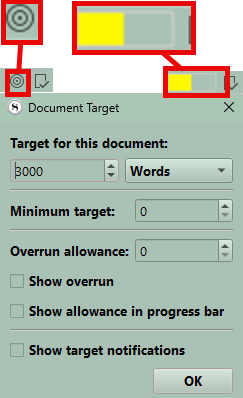
If the target icon (see below) is present in the lower right footer, you just need to click on it and enter a number in the Document Target window which appears (see below).
If the target icon is not present, then right-click on the folder and use the Menu option of Convert to File. Now, a target icon will be present, and you can set a target. Now, right-click again and use the Menu option of Convert to Folder. If the Word Target bar is not there, then simply click on another Binder file. When you return to the folder, the Word Count bar will be there.
Files
You simply click on the Target Icon in the lower right and fill in a number when the Target Document menu appears. (see above)
Word Count Totals
If you have not set folder Word Targets as discussed above, then in order to see a folder’s word counts you must be in the Scrivenings or Outliner View (and choose columns to display with word counts) to see these totals. Clicking on the folder itself does not display the word count of its contents. You must click one level ABOVE the selected folder to see the folder itself displayed in the Outliner. To see the Act I folder in the Outliner, you must pick the folder one level higher. (The Manuscript/Draft Folder to see it.)
You can choose various options to monitor progress but measuring the Total Words (actually in the file), your Total Target, and final a graphic representation of Total Progress tend to give a thorough summary. (You choose your colors for starting, middle, and final word progress colors in the Appearance tab of the Options panel (look at Total Progress Bars, so at a glance you know your level of progress).
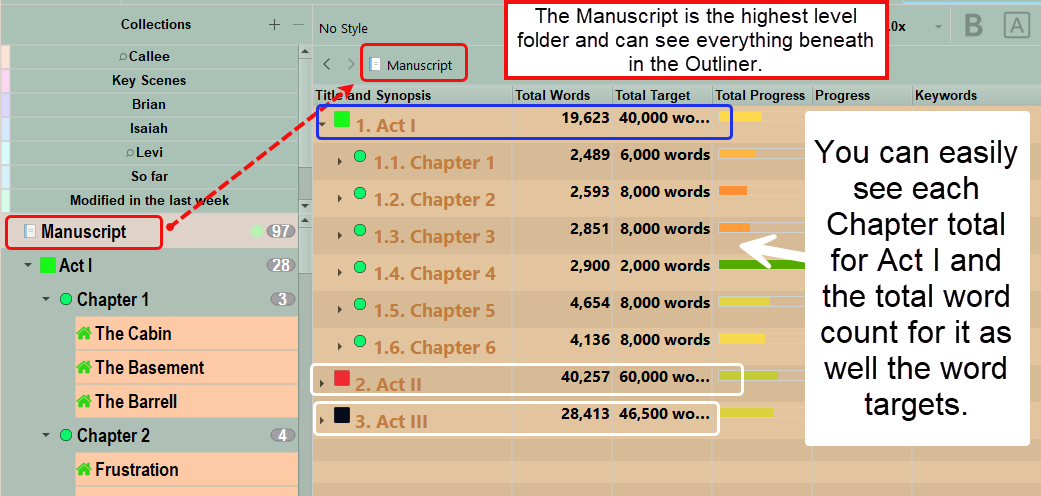
If you want to use this method to see a more granular count, this is simple to do.
If, for example, you just want to see the total of Chapters 1-4, then:
1. Select these chapters and their scenes and view in the Outliner view to see both Chapter and scene counts.
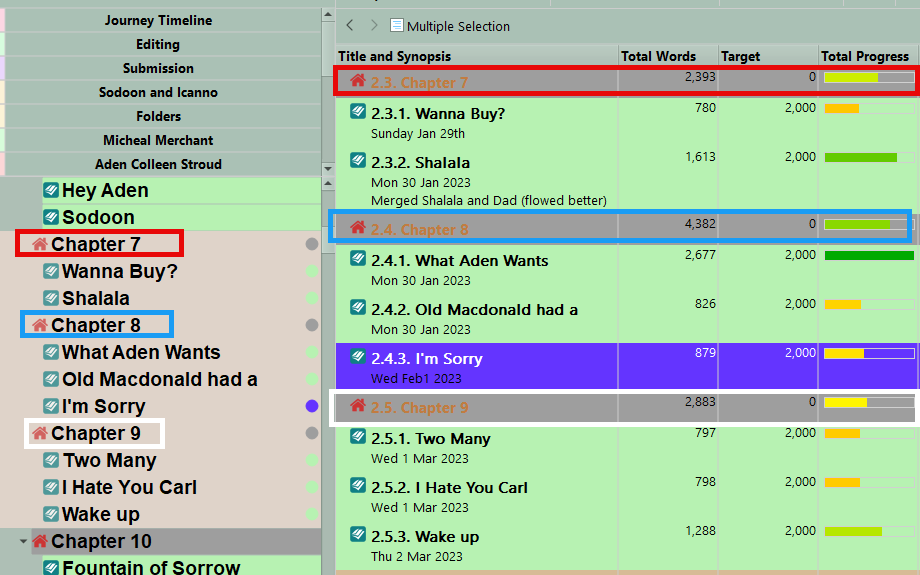
2. If you now switch to the Scrivenings view, then you see the total word count for these selected documents in the center of the footer bar.
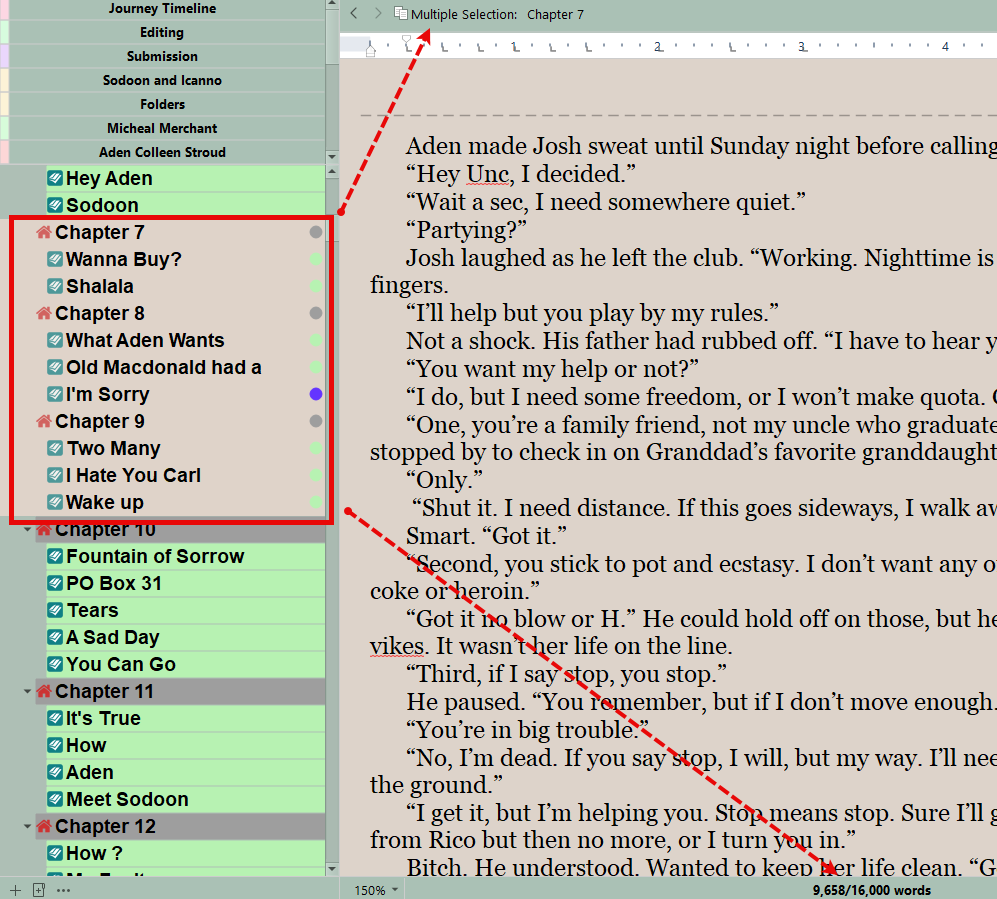
If no Word Target is set for a file, then though the file will add to the folder’s word total, it does not increase the Total Word Target of the folder.
Progress (for individual files) and Total Progress for a folder and its subdocuments:
Changing a folder to a document with subdocuments changes nothing with regards to Progress or word counts.

Method 3a. Use the Right-click Menu in the Outliner or Corkboard View
In this situation, you can select adjacent or widely separated binder files/folders in the current Outliner or Corkboard view (shown below), and then right-click on these files. At the bottom of the right-click menu is the total word and character count of the selected documents.
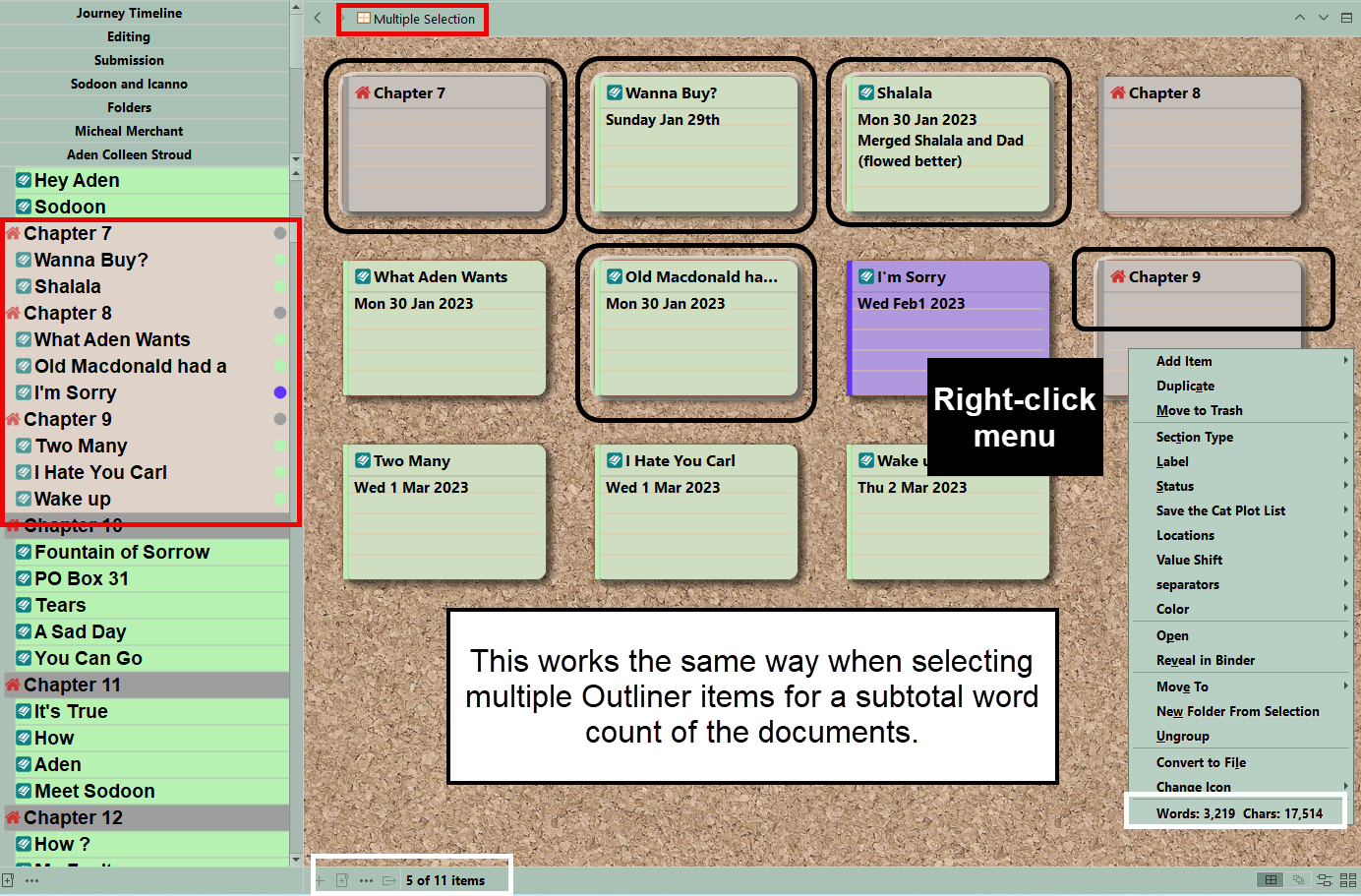
Note: When choosing only some of the documents in the Outliner or Corkboard, then you will see the number of documents selected from the total documents available in the left of the footer. If you only select folders which may have no words, you will get a zero count. You must include documents with words to get numbers generated by right-clicking on files.
Method 4. Use Collections
Select any Collection, Dynamic or Static, and click inside it and use the Keyboard shortcut Ctrl + A to select all the files. Now you can click any of the Group view icons to view the entire Collection. Now if you view this with the Outliner View and right-click, then in the menu which appears you see a total word count and total target count for the selected files. If you use the Scrivenings view, the total word count and characters will be in the middle of the footer. You could create Dynamic Collections for each Major Character and see roughly how much of the story involves them based on the number of scenes they appear in. You could also look at locations, or anything else you tag with Metadata (Labels, status, keywords, custom metadata, etc). If you have a Dynamic Collection for each major character it becomes easy to run the search again and generate a complete list of documents containing your search term to use for word counts.
If you hover the mouse over the Quick Search bar, you will see your total words in the Project and words written today.
Word Count of Selected Text
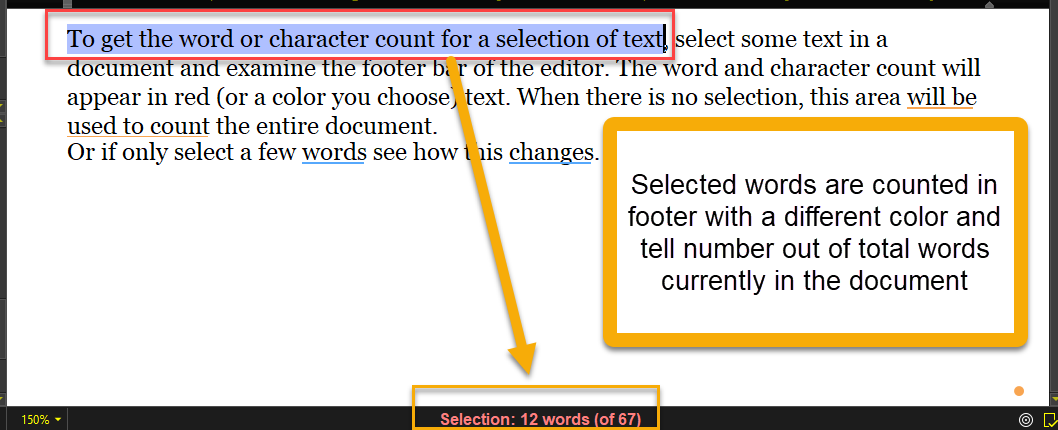
To get the word or character count for a selection of text, select some text in a document and examine the footer bar of the editor. The word and character count will appear in red (or a color you choose) text. When there is no selection, this area will be used to count the entire document.
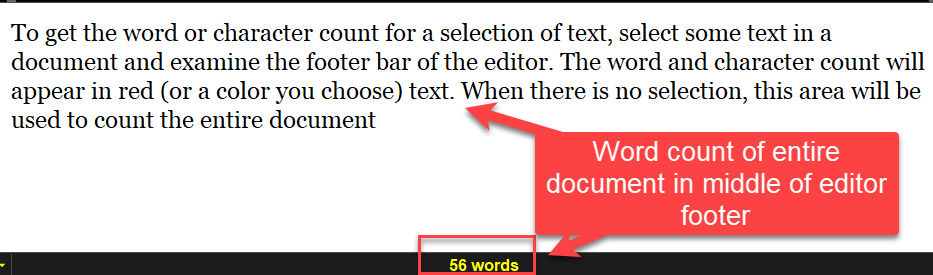
Or if you only select a few words, see how this changes.