Linking Splits-Making Splits Load by Type when in Split Editor View.
This only can happen in the Split Editor view and how it functions is based on whether you are in a Split Editor view, or in a split view with a Copyholder. This is similar to clicking on the Binder and the document appearing in the Editor window.
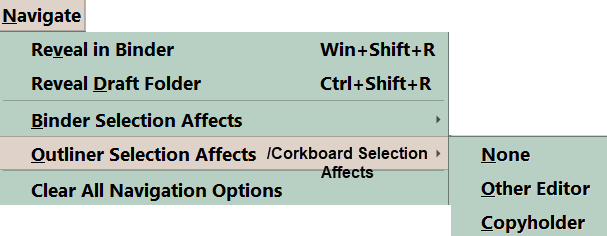
Linking Splits will designate that any item clicked in one Editor window when clicked will either do nothing (none option), open in the other Editor (window), or open in a Copyholder when you click on a document in either the Outliner or Corkboard Views. The options can be different for the Outliner or Corkboard views. You can change the options at any time by using the Menu command Navigate > Outliner/Corkboard (depending on which one you are using) Selection Effects. See below for the Outliner.
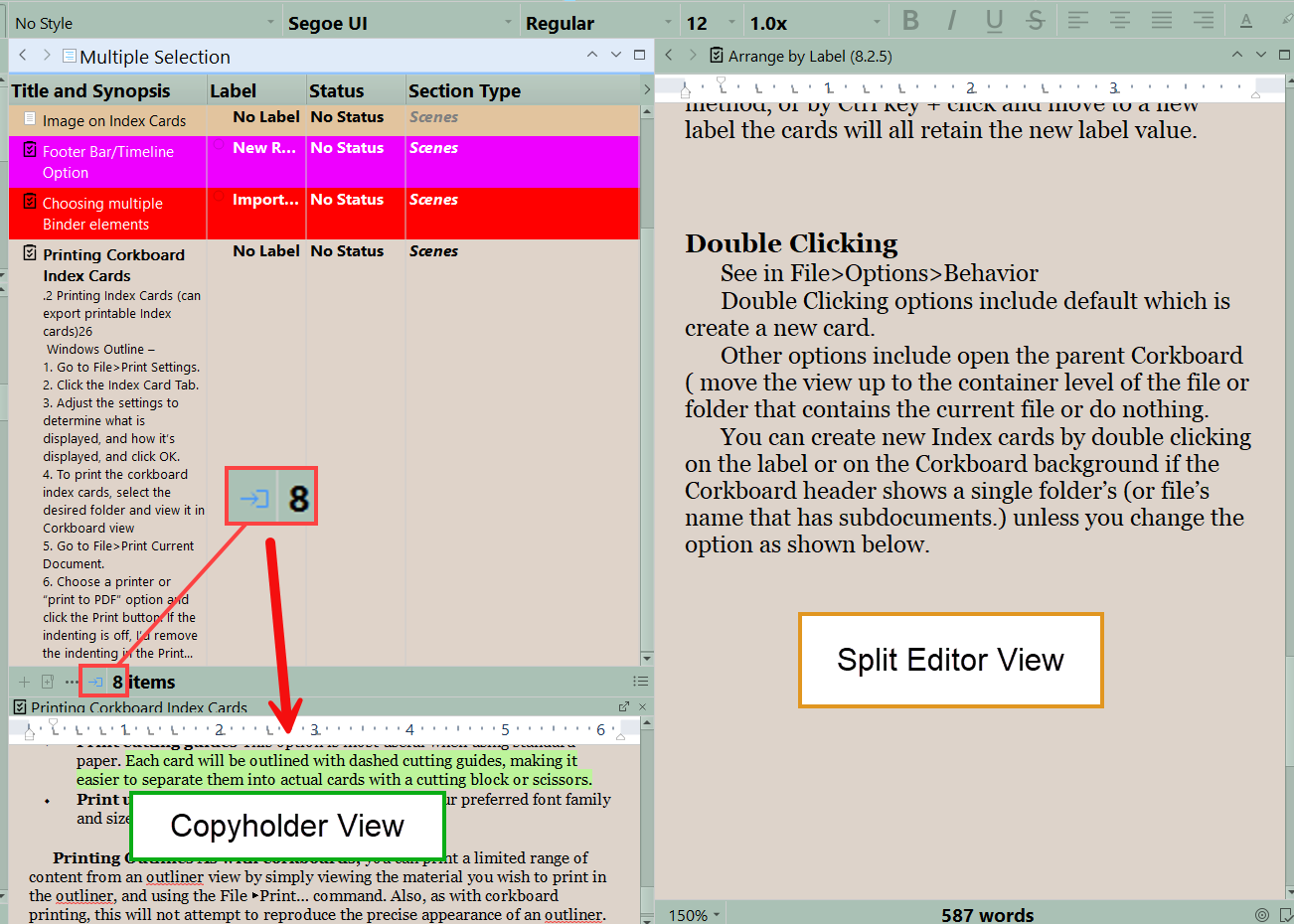
If your layout is setup like this with both a Split View Editor and a Copyholder window on the same side as the Outliner or Corkboard view, then clicking on the Linking icon (see arrow below) will cycle between the three selection options.
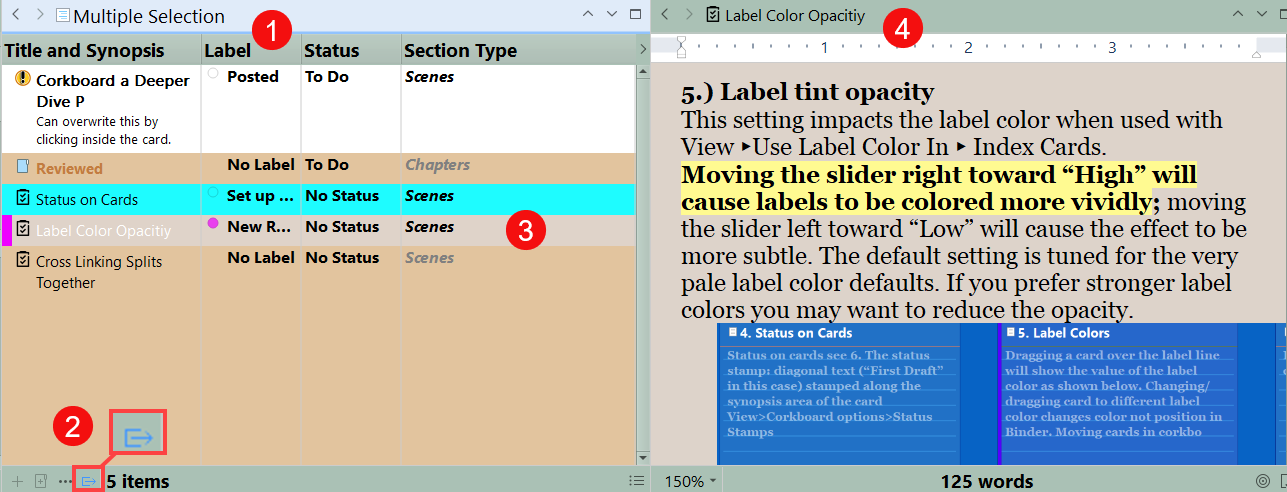
If you would like to use the split views to achieve a stricter form of navigation, where groups of items always load in one side and text content on the other split view then this is the method to use. (The first example is in the Outliner view, and the option is to open a clicked item in the Other Editor in the split view.)
Take these steps:
#1 Choose a group of files and view in the Outliner (or Corkboard) View. You must use the current option of (nothing happens, other editor (this example), or copyholder when you click a document in the Outliner)
#2 You must click the Linking Splits icon and change it to the active color for this to work. (Light blue in lighter themes.)
#3 Click a document on the left and it automatically is opened in the way you chose. In this case it is the other Editor window.
If you choose the none option, the icon (#2) will be greyed out
If you are in Split Editor View, and click the icon it will appear as above.
If you are in Split Editor View with a copy holder window on the same side as the Outliner or Corkboard, then you can choose to open any document clicked in that attached Copyholder using the Menu command Navigate > Outliner (or Corkboard) Selection Affects and choosing the Copyholder option. You will have to click the icon and it will change color. The symbol is different and looks like below.
Activate this option by clicking on the linking icon (in this Scrivener theme the light color is equivalent to blue color in dark themes)
Why this might not work?
1. When there is not a Split Editor or a Copyholder view, then the Link button will do nothing and only activate under the right conditions
2. The Link Icon(see above) is not active which is blue in light themes or grayish white in dark themes. You must click on the icon to activate it.
3. The Proper option under Navigate the drop down options was not chosen. (see altered Menu image below) If you choose None for the selection effect than nothing will happen.
When set up properly clicking a file in the Outliner or Corkboard View will open that file in either the other Editor window in a split Editor view, or in the Copyholder if you split the Editor into a main window and Copyholder arrangement.
This applies to both the Outliner and Corkboard view. You must check to make sure you have a link option chosen under the Navigate menu. This function defaults to none when you are in the single window Editor view.