Filtering allows you to use additional criteria to narrow a search of multiple files/folders currently in either the Corkboard or Outliner View to find what you are searching for.

To Reach the Filter View Field
1. Select multiple files to view.
2. Choose either the Corkboard or Outliner View
3.a Menu dropdown Edit> Find> Filter (The Find function changes to Filter when the above two things have happened. See image above.)
3.b Or keyboard shortcut Ctrl + F
Clicking the caret on the left (A) (image above) will reveal the filter menu below. Clicking Done (B) will exit this view.

A. Note the caret is now pointed downwards.
B. Right click here to see additional options for the filtered search. (Not seen well in this theme, but there is a magnifying glass icon in the blue block to the left of the text field.)

C. When finished using this view, then click the Done button to close this window. (to the left of the Done button is a refresh arrow to repeat a filtered search)
D. If you check the Filter box then the options become active to filter the currently selected items and narrow your search.
When finished, click Done (C) at the far right of this view.
Search options include:
1. Items Anywhere Options: This Filters based on location. The default Items Anywhere option includes all Project documents potentially in a search you are conducting based on what items are being filtered in the Corkboard or Outliner view.

2. All Options: (For Compile Status) This Filters for Compile status (Included or Not=Excluded) regardless of location.

3. Any Options: (Must choose Either include or exclude to enable Metadata filtering.)
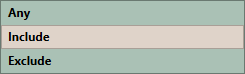
4. Only if choose the Include or Exclude options does this panel, and the next, become active. You will either include or exclude files in your filtering based on the options shown below. When using the include option, you can only choose one item at a time.
5. This field will show all the values available for each choice in # 4. If choose Items with Label, then the dropdown options in field #5 will show all the label values in your project to choose for filtering or the No Label option. Any Custom Metadata entry will display all of its possible values to use as a filter choice on the selected files/folders in the current Corkboard or Outliner View. One of the Filtering Criteria available to you are Labels but you must use Label names not their color.

Resetting or Refreshing Results:
Clear the current filtered search by:
Pressing the Escape Key (Press again and exit the filtered search view.)
Click the X button on the far right of the text bar once text has been entered.
Refresh by: Clicking the refresh arrow just to the left of the Done button on the far right of the filter bar. (see below-modified view) OR clicking inside the Search bar and hit enter will cause the Search to refresh as well. This works the same way for your Project Search.

Three ways to close the Filter View:
Click the Done Button
Press the Escape Key twice
Navigate away from this view
Using a split editor view, or copyholders, or quick reference panels can help you stay in this filtering view yet still see the information you are seeking.
How to Save filtered Outline or Corkboard searches as a Static Collection:
1. Set up a filtered search using labels, status, section type or custom metadata.
2. Use Ctrl + A to select all the search results. (#1 below)

3. Simply click the Plus sign in the Collection area(#2 above) to create a new collection with all the selected files (#3).
4. Give the Collection a name(#4).
5. The results is a new static collection that matches the current Outliner (or Corkboard) filtered search results.
This is just another tool to help you search and find the results you are looking for in Scrivener. The method is the same in the Corkboard View, but with larger numbers of filtered search results the Outliner view may be easier to work with.
You can also use a split view with the filtering on one side to allow you to search through your results without leaving the filter view. You could also open result in the Copyholder view, or save the search as a Static Collection.
Updated 7/17/26