The Corkboard gives another way to view your story or project as a series of cards that can be rearranged in various ways to help you organize your thoughts. The easiest way to bring up this view is by choosing the Corkboard icon in the main toolbar in the Group View Icon. You must click on a file/folder that contains sub folders for this view to be available. Each displayed card represent a file or folder in your binder.

Appearance
Clicking on a single document or folder without subdocuments will show a blank screen in the Corkboard view. However, selecting multiple documents, or a folder with subdocuments will show an index card for each document/folder/subdocument. (see below)
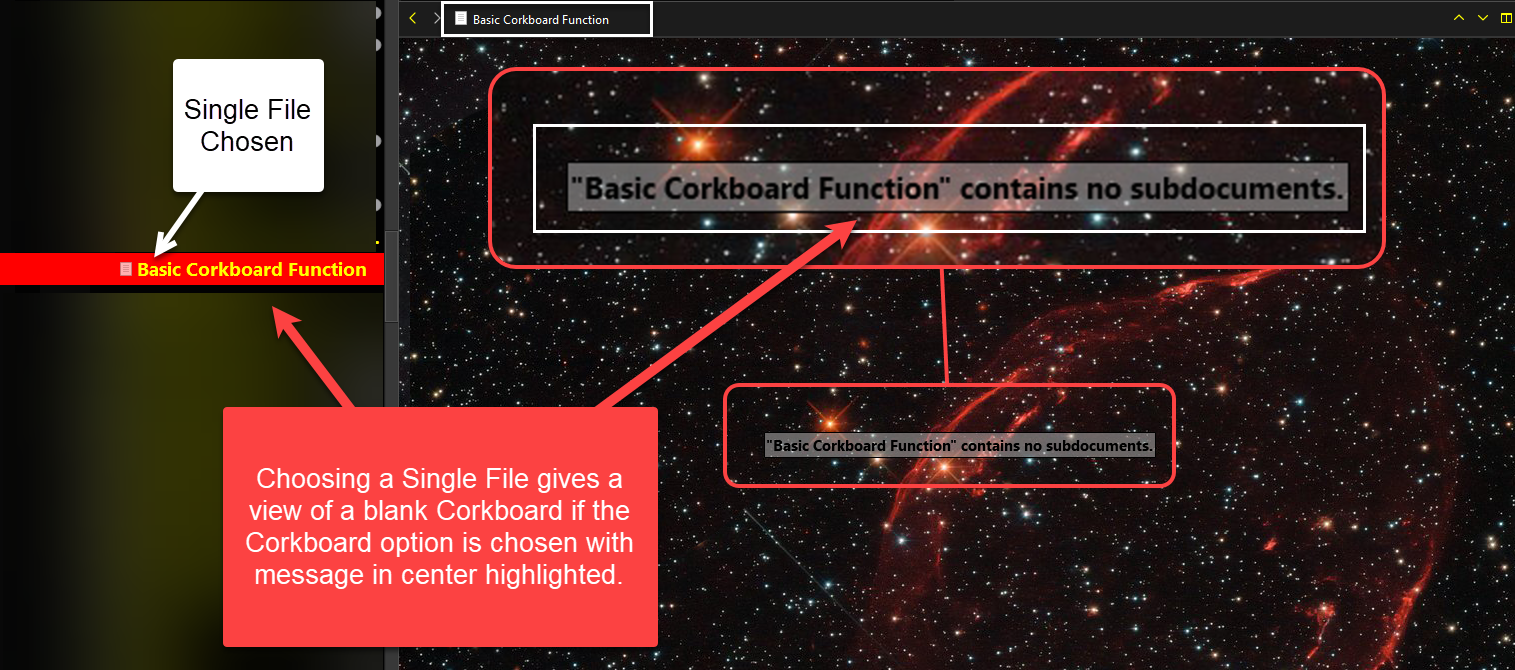
To display a file or folder in the Corkboard mode the item must have subdocuments in it. You must double click on the icon of the folder and then this open up and show all the subdocuments in the Corkboard view.
The Corkboard’s Index card can be presented various ways. You select these options using the menu dropdown View>Corkboard Options

You can also have the label color tint the index card using the menu dropdown View>Use Label Color in Index Card option. Examples of this tinting of index cards will be shown later.

More Appearance options are available in the Options Panel.
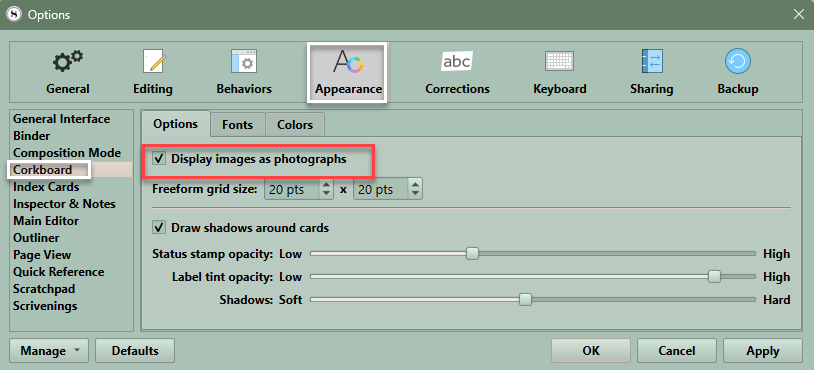
File>Options>Appearance>Corkboard-Options

If display images as photographs, will allow images displayed in the synopsis card of the inspector to show on the Index card in the Corkboard.

These options will change the appearance of each Corkboard Index Card.
In the same panel as above -NOW click on Colors- Here you can change the color or change to custom backgrounds in the various versions of the Corkboard that are available.

The appearance of the Corkboard Background can be any of the standard options for each view including a default/normal Corkboard Background. However, you can use DIFFERENT Scrivener default backgrounds, or customs backgrounds, custom colors can be used for the Freeform Background or Label View Background views in the Corkboard. So you can have a maximum of 3 different default Corkboard backgrounds for a project.
A Normal Corkboard Appearance
Always See these three Core Elements:
1. Icon
2. Title
3a.Synopsis/Summary
Note: Corkboard cards will display the File/Folder title next to the Icon. Below will either be the Synopsis you have added, or some of the main text imported in place of the Synopsis and ending in … Note: the amount of text included has a finite limit independent of the Corkboard Card Size.
3.b Or Image
You can choose to display an Image instead of a Synopsis if you choose to by clicking the picture icon in the upper right of the Synopsis area of the Inspector.
Optional Elements and changes in appearance can be added from the View menu.
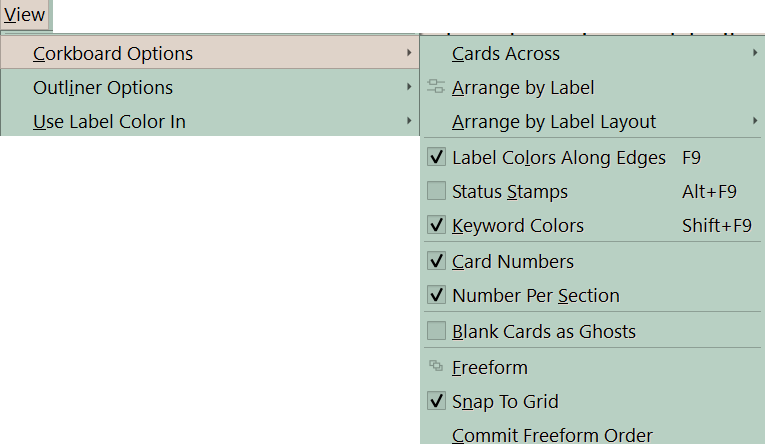
1. Label Colors can be displayed along the edges. The card itself is tinted by the Label Color and you can set the amount. (see below) The Label color can also be displayed as a central push pin rather than along the edge. (See File > Options > Appearance > Index Card- The Corner Mark means a label line at the edge vs the Pin which means a push pin.)
2. A Status Stamp which will stamp the Status across the card. This option has a slider to make the text more transparent and less obtrusive. (The Slider is seen in File > Options > Appearance > Corkboard > Options _Adjust the Slider and hit apply to see this effect.)
You can also opt to have card numbers for the Index cards you see to the left of the Title. (Do via the Menu command View > Corkboard options > Card Numbers
3. Keywords Colors: This option displays Keywords as color chips on the right edge or the card. [ When in the Corkboard view, Corkboard options in lower right footer will control how many you see.]
4. Card Numbers: Cards for any level will display numbers in the upper right. When you move any corkboard cards around their number order changes automatically. Scrivener numbers each card in relation to the other cards on the Corkboard. These numbers don’t reflect chapter numbers, or anything else, and don’t display when you compile your project. These are simply first to last in binder order of the Index cards that are displayed. These numbers can be extended to numbering subsections inside cards containing subdocuments.
5. How cards are arranged in either a Freeform fashion or snapped to a grid.

Note: Corkboard cards will display the File/Folder title next to the Icon. Below will either be the Synopsis you have added, or some of the main text imported in place of the Synopsis and ending in … Note: the amount of text included has a finite limit independent of the Corkboard Card Size.
1. Option to display any label associated with a card as a pin.
2. The option is to display labels as a line on the left edge of the card. This option is set in the menu dropdown View> Corkboard Options>Label Color along edges.
3. Status Stamp has a slider to make more transparent and less obtrusive. (Is set in menu dropdown View> Corkboard Options> (if) Status Stamps is checked).
4. Keywords as color chips, Corkboard options in lower right footer will control how many you see. (This option isset in the menu dropdown View> Corkboard Options> (if)Keyword Colors is checked).
5. Index Card is tinted by Label color. A slider controls the degree of this effect (see below). (If the index card is tinted, then the Synopsis card in the Inspector will be tinted as well.)
6. Corkboard background (here is a Corkboard background, other default background options are seen with #7 (beige graph paper) and #8 (slate gray graph paper). You have the option for a custom background as well. This is best done with small repeating tiles.
Further tweaks to the Corkboard can be made from the Options Panel under the Appearance tab under the oPtions, Fonts, and Colors tabs.
Below you can see the various choices under Corkboard appearance to change the look and feel of your Corkboard cards. The Index card option directly below offers other ways to customize the appearance as well.
1. File > Options > Corkboard > Appearance > Options
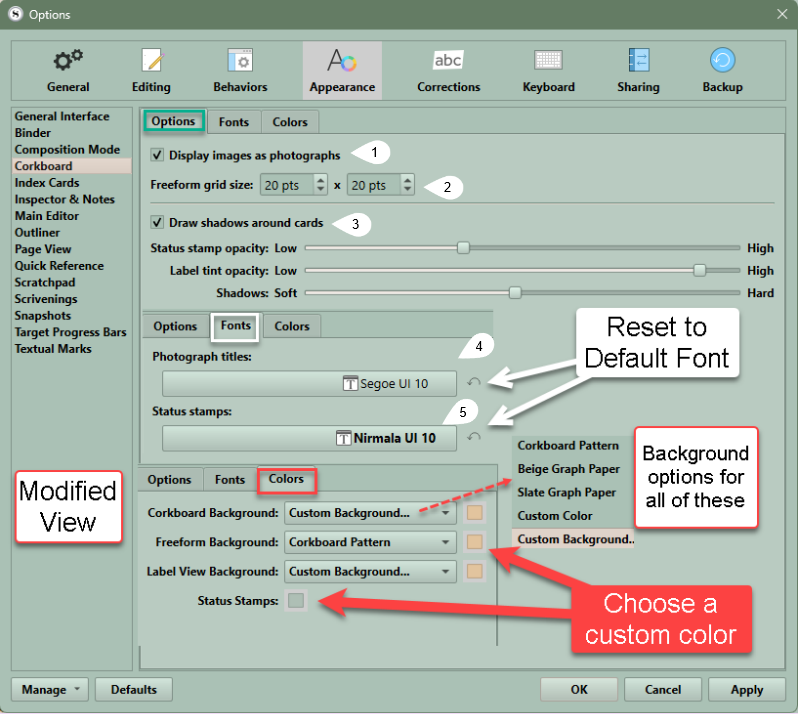
Note if you open the Options panel while in the Corkboard View then you can see the effects of changing various options. Hit apply and then adjust to get the appearance you want.
1. If checked video, image files, and documents where the synopsis pane is changed to a picture will display an image on the Corkboard Index Card. Disabling will change to the synopsis text only and may improve performance on large boards.
2. Freeform grid size determines size in the Snap to Grid option of the Freeform Mode.
3. Draw shadows around index cards for a 3-D effect.
4. Can set text for Photograph titles
5. Sets the font for text for Status stamps. NOTE: the size of the Status stamp is determined by the card size and always fits within the card.
Further tweaks to the Corkboard can be made from the Options Panel under the Appearance tab under the Fonts and Colors tabs.
Each Corkboard background type can have a unique option or solid color.
To add a Custom Background- Open up your Scrivener project, then go to Options > Appearance> Corkboard (tab) > Colors > Freeform background > Custom background… Select an image on your computer. Can have different ones for the Regular Corkboard, Freeform and Label View and can be different for each view.
Your background image should now show up. You might need to resize or close the Binder and/or Inspector panes to see the entire image.
Below you can see the various choices under Corkboard appearance to change the look and feel of your Corkboard cards. The Index card option directly below offers other ways to customize the appearance as well.
2. File > Options > Index Card > Appearance

Under the options tab, if you check show text lines this will affect both the Index card and the Synopsis appearance in the Inspector.
Showing Only the Folder/Container and not the subdocuments in Corkboard View
1. Choose a single file or a Folder/Container with no subdocuments among the Folders/Containers with subdocuments to display on the Folders/Containers on the Corkboard View. (The single document just must be included, but the order of inclusion is not important.
2. Now every Folder/Container added to this will only display the top card with subdocuments hidden.

Fonts

Corkboard Backgrounds-
Each of three can be unique or have a different custom background.

To add a Custom Background-
Open up your Scrivener project, then go to Options > Appearance> Corkboard (tab) > Colors > Freeform background > Custom background… Select an image on your computer. Can have different ones for the Regular Corkboard, Freeform and Label view as well and can be different for each view.
Your background image should now show up. You might need to resize or close the Binder and/or Inspector panes to see the entire image.
Different Label Tints-
The level of color can be adjusted on a slider in the Corkboard appearance options. You can also adjust the intensity of the Status stamp and Shadows as shown below.

Below are examples of Low, medium, and high levels of tints. (The final appearance is affected by the base card color as well. See below)
Low


Medium

Full Tinting
Displaying Label Colors for Index Cards
Label Indicator as a centered Pin above the title.

Label as a Pin
2. The Label Indicator as a Corner (really along the edge) (See the Image below.)

Along the edge
3. Display the Label Color in the (whole) Index Card. Menu command View > Label Color In > Index Card.
A. When you do this, then the whole card displays the label color. (See the image below)
B. The level of color can be adjusted on a slider in the Corkboard appearance options.

The whole card displays the label color.
Display Images on the Index Card
The Index Card displays EITHER the title and the synopsis (a short description of the item) or a Picture (See #4 below) if you decide for that option, you will see both the title and a picture. You can choose this under Corkboard options (see below) or in the Inspector under the Synopsis Tab.


This option is set in the Inspector in the Notes section. In the Synopsis field header on the far right is an icon (#1 below). Clicking this icon will change the field from text to an Image viewer. If you are in the correct option you will see a picture display or the option to Drop an Image here, typed inside the Synopsis area (#2 below). If you display an image in the Synopsis field then the Index card will display the Document’s title and image (#4 above).

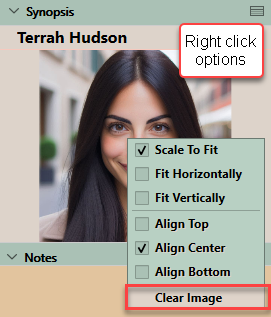
Note: The image cannot be directly dragged onto an index card, though it can be directly dragged onto the Inspector’s Synopsis tab and then displayed as an image. You can also right click on a Synopsis image and choose the option to clear the image to remove the picture (or other adjustments as shown below). (Bonus tip: Images can also be added to the Note section of the Inspector, but if dropped here they will not display on the Index card.
Blank Corkboard cards as Ghosts
This will make blank cards less visible and visible different. Do this with the Menu command View > Corkboard Options > Blank Cards as Ghosts
We will discuss the functional options for the Corkboard in another blog of my Basic Corkboard Series.
Grey text in an index card means the document has no Synopsis and the first few lines of text from the document were used instead.
This blog was updated 10/29/26