Searching with Tags
Something to consider about Scrivener is that it has a wealth of its own tracking tools built right in the software that can make keeping separate Todo lists unnecessary. For example, keeping a spreadsheet with all of your scene details is typically less useful when you're using Scrivener. For some of us it is a habit to keep a list of things to do outside of the software we use to write, but I think it is worth considering breaking that habit. Scrivener possesses many built-in mechanisms for tracking Todo lists.
Scrivener works best with small chunks of text. In a novel, this usually goes down to the scene level, but if you need further localization, nothing prevents you from splitting a document further.
Localization/Searching Methods
Metadata
Labels allow a visual search ability depending on the options you choose with the Menu command View > Use Label Color within options. This is limited to one choice per document.
Status is another piece of Metadata which is non-visual which can track information including the status of a document. These can be displayed in the Corkboard and Outliner, giving you a high-level view of what needs to still be worked on. Use the Menu command View > Corkboard Options/Outliner Options menus.
Keywords escape the limitations of the above two by giving you the ability to tag the same file with multiple qualifying pieces of information to track characters, plot, themes, locations, editing or anything else.
Custom Metadata can be assigned to documents just like Status it is not visually visible, but can be found by searching, or displayed in Outliner columns. (Discussed later in this blog.) This can be in the form of checkboxes for a document, or lists which could be lists of issues to address.
***Remember to choose a distinct and unique search color for your results. This should be distinct from any highlighting colors you may be employing in your text or Comment colors you are employing. Set this by going to the Options Panel. File > Options > Appearance > Textual Marks > Colors > Search Results Highlight and selecting a unique, distinctive color.
Text
If you simply search text, then this includes any text inside the Editor and includes Inline Annotations. However, this does not include other places where text can appear outside of the Editor.
However, if you select the Search In > All Option, then these but also includes every text element in the Scrivener Project including:
Editor’s text
Inline Annotations (These are considered part of the Editor text for searching purposes, but can be excluded from the Compile Process under settings in the third Compile Pane)
But now also includes:
Inspector Synopsis Text
Inspector Notes
Text based Custom Metadata
Footnotes, and Comments
Different ways to search text include:
Any word- This default option returns any documents containing at least one of the words typed into the search box. (A list of words must be separated by a space or a comma to be searchable.)
Note: This type of search will reveal the search word even if it is part of another word. For example, a search for the word sea will highlight seashore, seasick, or seamless.
*****All words- This option returns ONLY documents containing every word entered into the search field. Mixing words with double quoted phrases works as well. The order of the words has no influence on the result. The phrase "black car" with quotes will have Scrivener search as though the phrase inside the double quotes is one word.
Note: If you want to search for two characters at the same time then enter their names separated by a space (or a comma) to search for them.
Ex.-Angela Fred(separated by space). With this operator active, only documents containing both names will be selected. This can also be different object types such as names and locations separated by a space/comma as well.
Remember, putting quotes around a phrase causes the Scrivener Search engine to treat the phrase as a single word. Ex. Searching for the quoted phrase "black car" would treat this as a single word and only show documents containing the phrase black car and not documents with just the word black or car alone.
Exact phrase- Only documents with the words precisely as typed (A total Match) will be returned by this type of search. The order of the words used is now important. If the words are a subset of a phrase, Scrivener will also return that phrase. A search for the phrase "the book" will not return results for book, or book the, but will flag "the books" (the plural form) or "the bookworm" because within this phrase you find the entire search phrase "the book".
Whole word- Scrivener will return documents containing the whole word only, BUT nothing if the word is a subset of your search phrase or word. If you choose to search for boat with this option, then boats or boating would not turn up in this search. Using this type of search, you must match the word exactly to obtain results.
To search for multiple words at one time, separate them by a space. Searches do not depend on matching capitalization.
Search Tricks for text searches-
You can search by all (need all the listed terms), or any.
To find documents which contain a word AND a specific/exact phrase do the following:
A. Set the Operator to All Words
B. Choose a word (ex. Bob) and a phrase (ex. black car) separated by a space. Now if you put in the search window Bob "black car”, then your search will find all documents containing both Bob and the phrase black car. Enclosing a phrase in quotes treats the phrase as a single word for the purpose of this search.
To find documents which contain one word WITHOUT another (find A but not documents containing both A and B) do the following:
A. Choose the word to search for (ex. Jane) then add the minus sign to eliminate a word that might be found with it in your story. (ex. Jane Doe).
So if Search for Jane -Doe, this will find documents that have Jane, but not documents including the phrase Jane Doe. (The minus sign must be next to the second word or phrase without a space to work.)
This can be combined such as Jane -"Ace Reporter" and this will find documents with Jane, Ace, and Reporter, but not whole phrase Ace Reporter. The phrase Ace Reporter is treated as one word because of the quotation marks.
This technique can be used with both the Any Word and All Word operators.
Why Tag?
Author Jessica Brody in her new book Page One to Done talks about finishing a first draft in thirty days. To accomplish this, she urges you to avoid the research scene trap. For example, when writing an airport scene, you may be tempted to look up an airport’s layout, its restaurants, and major airlines to add realistic details to the scene. To do this, while writing, will pull you out of the scene and slow your draft. She argues to tag your place and leave an explanation of what needs to be added later and keep writing the emotional and narrative heart of the scene.
Example: John entered the wide concourse and turned to [add layout] and on the way to gate [later] spotted a [name] for a drink while waiting for his delayed flight. He wondered when his nomadic life would end.
Jessica argues that the information in the brackets is not crucial to the underlying scene’s purpose. Finish the draft and come back and research the details you need when rewriting your first draft. Tagging these with your system and coming back allows the first draft to be completed quickly, while research can be done at your leisure outside the writing sessions.
What is highlighted when you do a search for your tags?
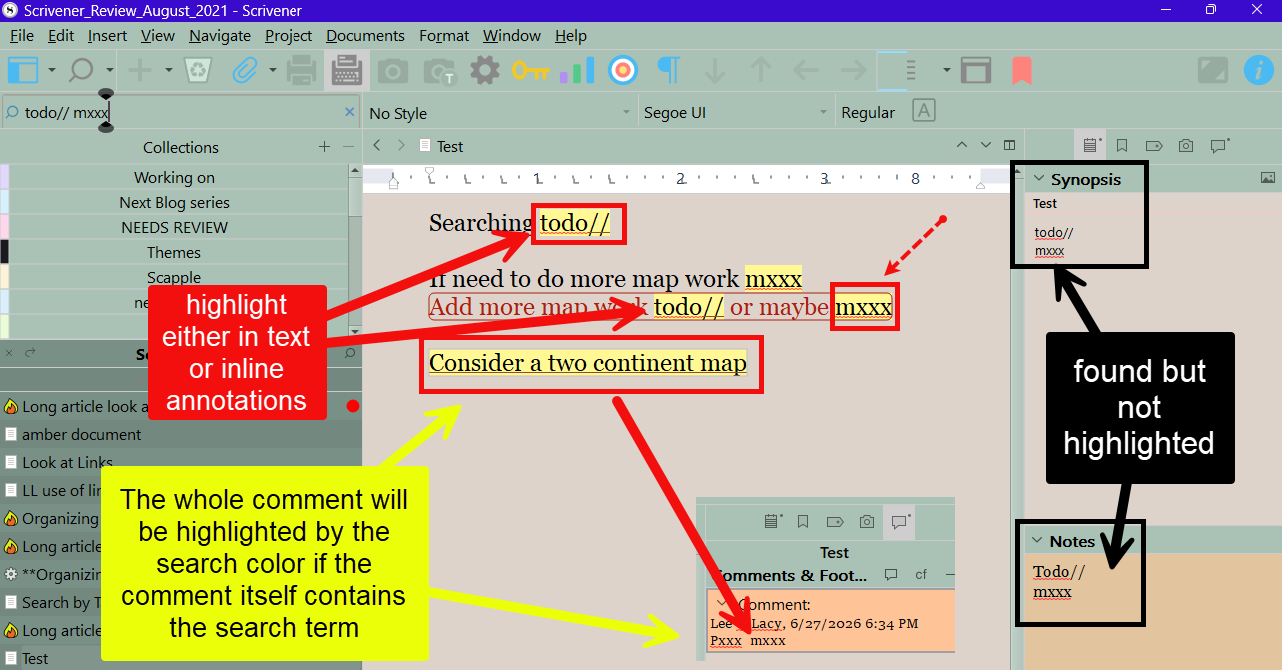
The example below includes a search including both a Text Tag [todo//] and a Letter Key [mxxx?] (See below) Using either tag in any of the areas shown below will give a search result, though not all of these will be highlighted with your chosen search highlight color (yellow in this example). Note: The search term INSIDE the Comment is found but NOT highlighted. However, the Comment’s highlighted text will now be highlighted with the current Search Color. This is why your search color should be distinct and unique to be able to pick it out from any other text highlighted by text highlights or Comment colors.
Your tagging options in Scrivener include:
Inline Annotations
Advantages
They can be excluded globally from the Compile output without manually deleting them.
They are searchable like normal text.
So:
If you use a system of notations inside your Inline Annotations, you can build saved searches around them. In the examples below, neither the // nor xxx would normally be encountered in your text and thus are unique search tags.
Notations could be a series of terms with a unique symbol [todo//, research// or letter combinations [pxxx, mxxx] as seen above:
Comments and Footnotes (Both function in the same way.)
Advantages
These are less intrusive than Inline Annotations
You can include detailed explanations or discussions of the issue inside the Comment.
Clicking the Comment or Footnotes moves the Editor to the linked text in the Editor, even if in Scrivenings view. This can be very useful when searching a whole Act or Chapter. Clicking the Comment will instantly transport you to the pertinent text. (You could use unique Comment colors for issues. Worldbuilding issues could be blue, while plot holes could be red. When seeing multiple Comments in the Inspector, then the color allows efficient searching using colors to address a single specific issue at a time.
They are searchable like normal text
They can be excluded globally from your Compile Output.
Even though the search term will not be highlighted inside the Comment, the ENTIRE Comment will have its color change to the Search result color if the tag phrase is inside. If you delete the search term from the Comment (ie address the issue) then the color reverts in real time back to the original Comment color. (Choose a distinctive Search highlight color which is distinct from your Comment Colors and any text highlight colors you are currently using.)
A Text Tag:
Your tagging system should use unique phrases, phrase and symbol combinations, or letter combinations which would NOT be encountered normally in your project. Examples could include UNIQUE tags followed by a double forward slash (or similar symbols which do not appear in normal text):
Todo// for things which need attention
Research// for areas requiring more information or development
Rewrite// or Edit// after the first draft to identify problem areas
Figure//—where you need to edit or update a figure
Advantages
You are taken right to the exact location of the issue in your text.
When these have been corrected you simply delete the tag and eliminate this issue from future searches.
Tagging allows you to search issues by problem category. For example, you could address all the project Research issues at one time, or any Plot issues across the entire novel at one time. This would keep your focus on one issue at a time to tie all the various threads together into a cohesive tapestry.
Disadvantages
You must delete these manually before Compiling.
You will probably prefer to have wordy explanations either in the Inspector Notes, Synopsis, or Comment sections of the Inspector, rather than in the Editor to be less intrusive.
A Letter Key:
Uses unique letter combinations to identify writing issues:
These have the same advantages and disadvantages as Text Tags.
This letter code system could be included inside the body of the Editor text, Inline Annotations, Inspector Notes, the Synopsis, or Comments/Footnotes. Note: if you place the Letter Key inside Comments, Notes, or the synopsis, then the searchable text will NOT be highlighted when it is found. Yet the Comment will be linked to the exact point in the text the code refers to and the whole Comment will be highlighted inside the text with the search color. (see above)
My example code uses a triple xxx which would not normally occur in text. (This could be a double xx as well.) Using a triple X in the error codes becomes a simple way to search for them.
Xxx-means there is an area that needs additional work or more thought to develop. The first letter further clues you in to specific issues. Also, this combination of letters would not show up anywhere else. My code system is below, but you could create any key that makes sense to you. You may even adjust the code to include unique issues you encounter for the current project you’re editing and can expand your error codes and add an explanation.
When searching text, the search term will be highlighted in your text/Inline Annotations, but NOT in the Synopsis section, Inspector Notes, Comments, and Footnotes if you choose All as your Search option. However, the Comment or Footnote containing the search team will display the Comment inside the Editor highlighted with the Search Color which overrides the normal Comment color. If you add error codes in the synopsis section, then these will show up when look at your draft in the Corkboard view or in the Outliner view if you choose to include a visible synopsis with the title.
Here is one possible system.
Mxxx -map needs development
WBxxx -for world building issues
Fxxx -foreshadowing occurring
FFxxx -foreshadowing failing/needs work
Sxxx -set/location needs work
Pxxx -plot needs development
Cxxx -conflict needs work
Dxxx -dialogue needs work
Wxxx -word choice needs work
You could also have different codes for developmental and line editing issues as well.
An example of how your search results appear in various parts of Scrivener.
Scrivener Tip: Keep a key/list of the phrases, or letter combinations you are using and what they highlight. Include this in your Scrivener Project Template as an editing file to refer to for all future projects.
You can also combine these tags to further refine your search process.
Place this key file in Project Bookmarks, which allows your key to be viewed inside the Inspector from any document. (The Keyboard shortcut Ctrl + 6 will change Document Bookmarks to Project Bookmarks and back again.)
Scrivener Tip: You can search your project for multiple terms at once by listing them separated by a space. The searches are NOT case sensitive.
The Details: What and Where
What are you searching?
Whichever tagging system you use, you can then include details about the work which needs to be done to correct the issue, without worrying about searching for it. This could be saved in:
The Editor Text-
Advantages:
The explanation of the issue is available adjacent to the problem area.
Disadvantages:
The explanation can be intrusive and disrupt the flow of your writing.
The Synopsis-
Advantages:
Visible in the Corkboard and Outliner Views (if you make the Synopsis field visible).
Disadvantages:
Large text explanations will not be fully seen in the Corkboard view, and will distort the Outliner view.
Inspector Notes-
Advantages:
You can include an expansive explanation for one or multiple issues which does not disrupt the flow of the manuscript.
Disadvantages:
Your tag will not be highlighted (see images above) by your search. If you have multiple issues, you will need to separate and explain why the Inspector notes are there.
Comments (or Footnotes)-
Advantages:
There are no limits on the amount of explanation you can add.
You have the ability to use Comment colors to code to specific issues. (Plot issues could be a deep red.)
When searching even though the tag phrase inside the Comment text is not highlighted, the Comment’s color itself will change to the Search highlight color if it contains the search term in its text. (see image above)
Disadvantages:
Lengthy explanations can expand the Comment size and make it difficult to navigate long lists of Comments. (You could overcome this by noting and placing the full explanation is in the Inspector notes.)
Where are you searching?
Open a new Project Search and type in "TODO//".
Now to decide where you want to search. Options include:
Included Documents:
You can set this to only search Included Documents (ie your Compile output which is usually the Draft Folder/+/- the Front and Back Matter folders.)
Excluded Documents:
Classically, the Research folder.
Current Binder Selection:
You could search the current Binder Selection if you know the general location of the material you are searching for.
Search by Date:
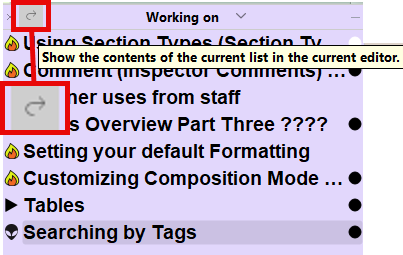
You could search by the date a Document was modified or created, if you know when the information was added to your Project. With the Documents selected by date, you can now use the hook arrow button (see above) in the Collection header to display these Search results in a group view. Now go to your search options and choose the current Binder selection option search this group of documents for the information you need.
Any of these searches can be saved as Dynamic Collections to use again and again as you work through the issues you are fixing.
As these issues are resolved you can delete your Text tags which will shrink your Dynamic Collection.
Set the search constraints to whatever makes the search more useful. These settings are made by clicking on the magnifying glass if you've never used them before. Click the hook arrow button in the Collection’s header bar to pop the search results into a group view (Scrivenings, Corkboard, or Outliner View).
When you are finished addressing these issues you tagged, you could delete the tag or change it to a tag like Done// or Dxxx.
Using the Outliner with Custom Metadata Tags
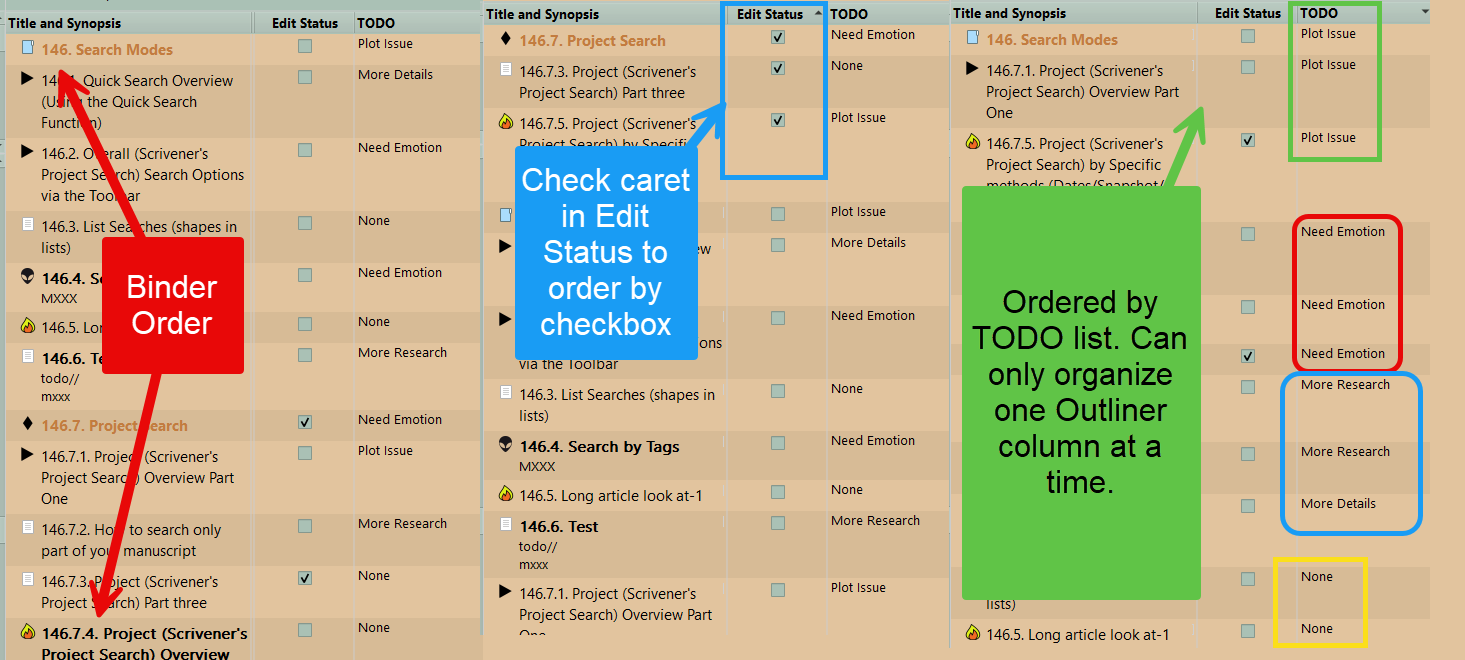
You can create Custom Metadata which can be displayed as an Outliner columnscontaining dropdown lists (This could be lists of developmental issues to address in your draft, or checkboxes.) You can adjust the position of Outliner columns so this information is readily visible (see below). The Layout Manager can save special configurations of the Outliner columns. This allows you to create layouts with unique arrangements of the Outliner columns to evaluate information in different ways.
For example: Edit Status could be a simple checkbox to indicate whether a document still needs editing.
Or you could have Custom Metadata TODO list with various dropdown options as shown below.
Using Tagging Collections
You can create Dynamic Collections of these focused searches by simply left clicking on the Magnifying Glass in the search window and choosing the last option in the list, which is Save Search as Collection. This will create a Dynamic Collection based on your current search criteria. The default naming convention is to use the search terms as the Collection’s title. This may be all you need, but you can edit the title if needed. Choosing this again in the future will run the same search and update the search results. (As you address issues and remove the search tags, or Custom Metadata, the Dynamic Collection will shrink.)
Bookmarks
Don’t forget Document Bookmarks, which do not tag the text or documents, but link information to the current document. Document Bookmarks put pertinent information for research or writing of the scene a simple click away.
Bookmark Link Lists can be a single file with a list of links. Examples would be Bookmarks lists containing all the POV characters, locations, worldbuilding information such as religions, government information, geographic, or historical information. A single document with a link list could be placed in Project Bookmarks which is then available within any Document. The keyboard shortcut Ctrl + 6 will change between the two Bookmark types in the Inspector.
The beauty of Scrivener is that each one of us can use a unique configuration of the various features available tailored to our writing and editing process. This can be as simple or complex as we need or want. This is only limited by the creativity of writers which is unbounded. Please look at this approach as a simple jumping-off point.
Which method(s) would I choose and why?
I favor using Comments which contain either a Letter Key or Text Tag [Or sometimes both].
The advantages for me are:
You can globally remove Comments when you Compile your project.
Search Highlights- When the Comment contains a Letter Key/Text Tag you are searching for, then the whole Comment inside the Editor’s text will be highlighted with the Search Highlight color.
Unique Comment Colors- Even though you can change Footnote colors, this must be done through the Options panel and applies globally. Comments, however, have a wealth of choices including 6 default colors, up to 16 custom colors, and 48 basic color chip options whose color is a fixed value. Potentially 70 unique color values are available to use to identify issues or concerns. You can not only create custom Letter Key/Text Tags, but assign 70 unique consistent Comment colors to these letter or text tags. Thus, in the Inspector Comment tab, you can at a glance know the issue being addressed by a Comment solely based on its color.
In Scrivenings view- You can visualize a whole Chapter, Act, or even Novel and use these color coded Comments to jump instantly anywhere inside your Scrivenings to address problems grouped by color like plotting, location, or research issues.
Less intrusive- I find Comments less intrusive than an Inline Annotation with a large explanation in the middle of my text.
Again, you can use multiple methods or whatever suits your workflow. Scrivener, allows you the flexibility to create the way you want.
I hope this article gives you more tools when writing. If you have suggestions which have proven useful to you, then please share by leaving a Comment, or send an email.