Slow Typing in Scrivener
The first question is this one project or multiple projects? And does this happen on other software like Word or Google Docs. If other software is effected look at Keyboard drivers and which port the Keyboard is plugged into. Is it on a hub rather than the computer itself?
Single Project Issues
If your answer is this affects a single project in Scrivener, then try one of the solutions below:
1. Using the Menu command File > Rebuild and Save Search Indexes to rebuild the Search Indexes. If this solves the problem, you are done. If not, move on to step two.
2. Reset the Project Interface Settings-
Method 1:
You must hold the Alt key (Option key on Mac) for the this new option to appear. While holding the key, use the Menu command File > Close Project and Clear Interface Settings
Method 2: (especially if you have trouble opening the project)
*** Make sure you have a recent backup saved before starting.
If you forget where your project is in Windows Explorer, then use the Menu command File > Show Project in (Window’s) File Explorer
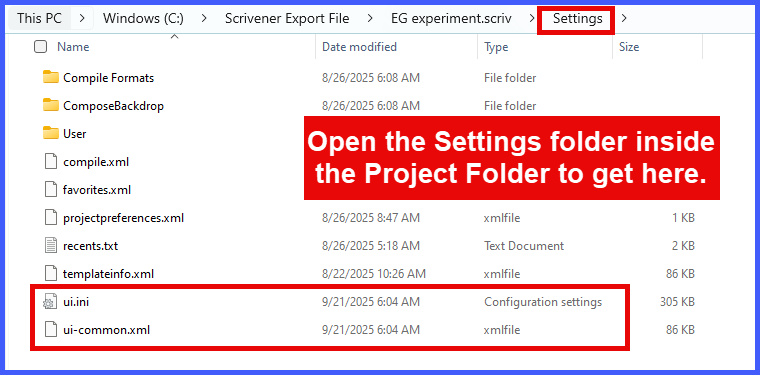
Open the Project folder and then open the "Settings" folder.
Delete the "ui.ini" and "ui-common.xml" files. Now, when you click on the .scrivx file to reopen the Project, these files will be regenerated.
If the problem persists it could be a corrupt Scrivener Layout. You can export the Layout and send to L&L.
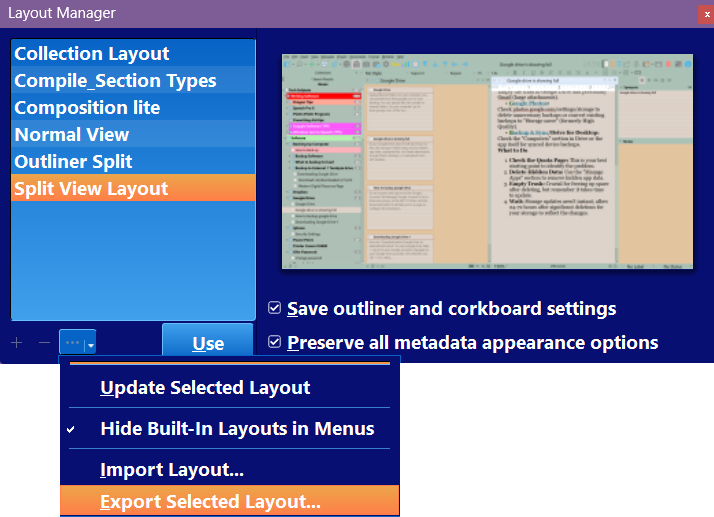
A. Use the Menu command Windows > Layouts > Manage Layouts
B. Select the current Layout active in your project and choose the Export Selected Layout option by clicking the … option. (see below)
3. Finally, if all else fails, then create a new blank project:
1. File > New Project
2. Choose a blank Project and give it a name.
3. Now, open it.
4. Use the Menu command File > Import > Scrivener Project and choose the problematic project. Now, is the typing issue resolved?
5. If so, then open the original project and its Project Settings and drag the Section Types, Labels, Status settings, Custom Metadata settings into the Project Settings panel of the new Project while its Project Settings panel is also open. Do this one type at a time and see if the typing is affected. If this corrects the problem, then archive the problem project in a special folder, and use the updated one. If for example, this occurs when adding Metadata, then rebuild the Metadata on the new project for the problematic entries.
6. As a last step, import the styles from the old project. Use the Menu command Format > Style > Import Styles by picking the old project Folder. If this now causes slow typing, delete the imported fonts and try new ones. You still control the ultimate final product font when you compile.
What to do if the freezing or lagging when typing affects Multiple Projects?
If so, consider the factors below to see if they could be playing a role in your problem.
*** But first, Sometimes a simple restart of Scrivener will solve the issue. Do this before going through the possible solutions below.
What is your project size?
Large projects over 500 mb have the potential to slow Scrivener. If you have a lot of research images, videos, or large PDF files, then Importing these files as research Shortcuts can dramatically decrease your project size. (File > Import > Files as Research Shortcuts)
A Single Large Document?
Are you using a single large document rather than subdividing it? Scrivener works best when your project is broken into smaller text chunks.
Scrivenings Issues?
Does this occur in Scrivenings view? When in this view, the total word count of the combined documents will be in the center of the Editor view. An option is to use smaller combinations of documents when actively typing. This could be affected by the total number of documents included. Pay attention to these numbers when you are having problems to see if you can discover the limits before this issue recurs.
Where is your Project stored?
If a project is stored on a network share option such as an office server, or a USB thumb drive, then this can cause sluggishness because of connection issues. The solution is to make sure that your project is both stored on a server if that is needed and locally on your current computer.
Too Many Comments?
Others have found that a large number of Comments/Footnotes in your documents could cause typing lags. This will probably never occur in a single document, but could occur when viewing multiple documents in Scrivenings View.
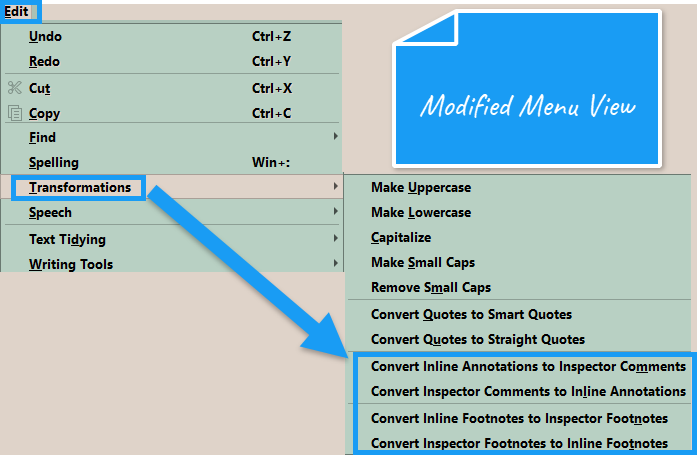
The easiest way to test this theory is to duplicate your current Project using the File > Save As option which creates a NEW separate project which duplicates your current Project. Anything done here has no effect on the original Project. Now strip out the Comments and see if this improves your typing lag when in the same Scrivenings view using this created project. If this is an issue you have the option to convert Comments and Footnotes into Inline Annotations and Inline Footnotes (see below and this is reversible.)
Font Issues?
Check for unusual font types or lots of bold text causing an issue. Test for this by again copying the file group you are having problems with into a test folder inside research. Now change to a default font and eliminate bold text. Now see if the typing improves. If it does, you can do your work/edits with a standard font and change back when this process is done. You can use the duplicate Project method above to test this out with rather than adjust your current Project, until you identify this as an issue.
Large embedded Images?
Do you have large images embedded inside text documents rather than linked as image files from the Research folder? Remember, scaling a large image to fit your page, DOES NOT change the size of the embedded image. This issue could be more impactful if you are in Scrivenings view with multiple documents, each of which has multiple images.
Linked Images can be a Solution!
A method around this issue is to use Linked Images. Use the Menu command Insert > Image Linked to a File. This linked image places graphics in your text in such a way that the thumbnail visible in your editor is being generated by files outside of the document, as opposed to being saved into the text of the file itself. This reduces the size of your project. Remember resizing a linked image will alter the original image’s metadata on your computer.
If you use the Menu Command Insert > Image Linked to a Document, then you are linking to a file in your Research Folder. You can have a folder of copied images for your project. Using these and altering their size within Scrivener will not affect the original files.) {An Image Linked to Document commands will insert an Image Link reducing a document’s size, but the source of these images will be from the Research folder.} Scrivener was not built to handle large image files. You can certainly still use these but they may affect performance if they are embedded in a document. These two methods will show the image in your text WITHOUT slowing your Project down.
Rebuild your Search Indexes.
Have you tried rebuilding your search indexes? Use the Menu command File > Save and Rebuild Search Indexes for each of the currently open Projects one by one to see if this helps.
Adjust Autosave.
You could adjust the autosave feature. (The default time is two seconds, but this can be increased which may improve your typing lagging but this should not be increased beyond 60 seconds.)
Composition Mode.
If freezing occurs specifically when entering composition mode, try using the default colors for the its appearance. This was suggested on a forum post.
Zoom Settings Issues.
Is this affected by your zoom settings? Experiment with lower zoom levels to see if there is an improvement.
Autocorrect Issues.
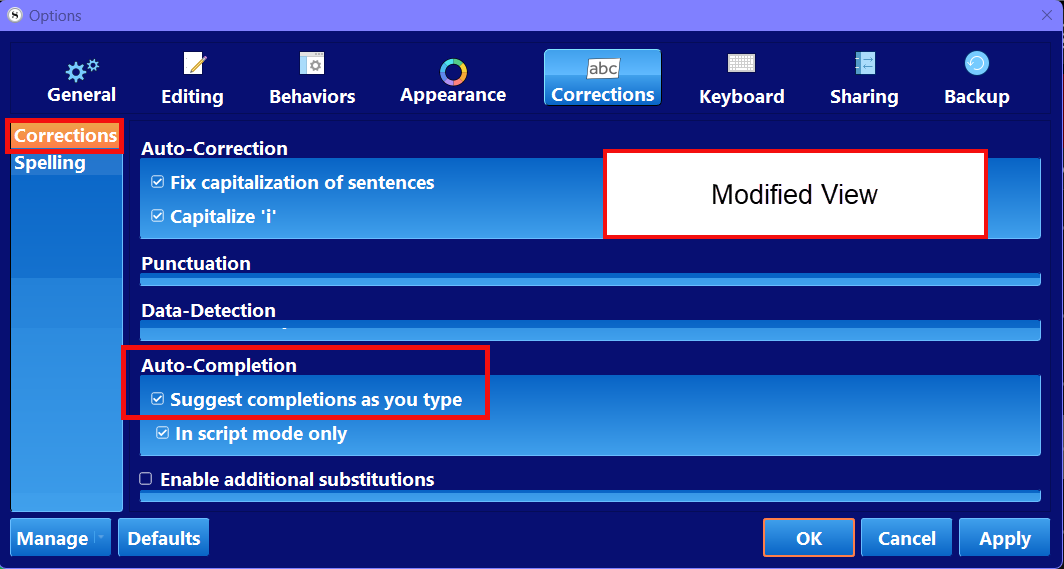
You can also look at your Autocorrect Settings. Use the Menu command File > Options > Autocorrect. Especially look at the box for Suggest completions as you type. You can try disabling several of the AutoCorrect suggestions to see this improves the lagging when you type.
Non Scrivener Software or Hardware Issues.
Antivirus software can cause issues. Consider whitelisting Scrivener to exclude the program from your antivirus software.
Look at the Task Manager (Ctrl + Alt + Delete and click on the option.) to see your memory usage. Are the browsers or other programs hogging RAM. Close these to see if this helps.
Check your Keyboard Drivers. Are these uptodate? Could you have corrupted files.
Do you need to change the port your Keyboard is connected by? Are you connected through a hub? Try connecting the keyboard directly to your device.
Are you low on system resources? Can you close unnecessary programs?
Finally, if all else fails, you can reach out to Literature and Latte for help.
Send an Internal Log.
Try send a log first which includes the slow typing issue. Use the Menu command File > Options > General > Warnings and check the box to Show internal log console. You can take an image of the log when there is a problem. When you are finished you should uncheck the log box, as long-term monitoring with this method can cause problems with Scrivener.
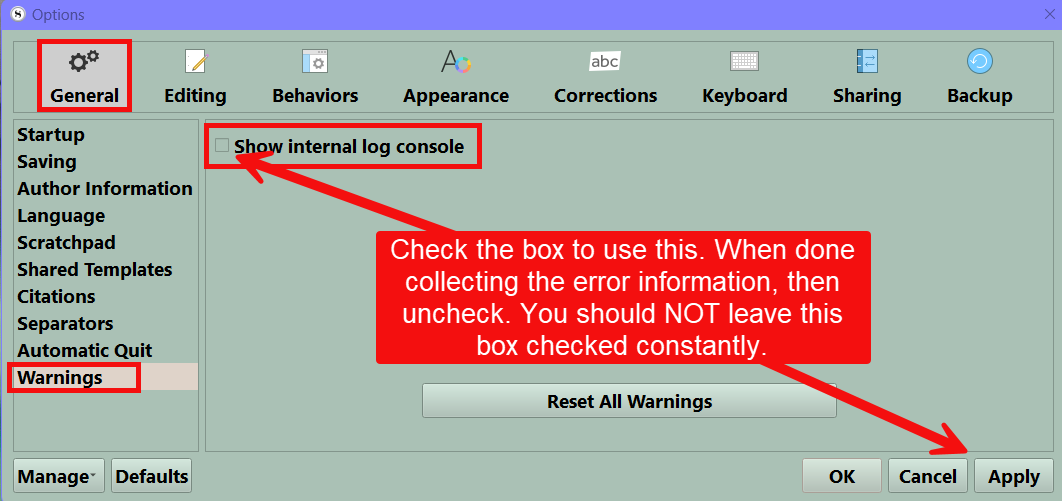
You can select the text in the Log file and copy and paste this into a simple .txt file like Notepad and send to L&L. You can ask directly for help and they will tell you where to send this text file for analysis.
Hopefully, these suggestions above will present a solution for you.