Scrivener Menu Backup Options

Save
Scrivener automatically saves your work as you go along but File>Save force Scrivener to save the project manually. (Ctrl + S) This is considered a manual save and will cause snapshots to be taken of any documents changed since the last backup. (If you have this option checked in the File > Options >Backup pane.)
Save As…
Using this option creates a NEW project with any name you choose. The original project is closed and saved. This is useful if you plan radical changes to the original project. You must choose a new project name and a folder to store this new project. (Ctrl+Shift +S). Simple backups are created with the Back up now and Back up to functions discussed below. (Fine points of automatic backups are set in the Options Panel under Backups.)
Please be aware that the Save As command is a very common cause of “lost” work.
It creates a new copy of a project, and then continues working in this newly created copy going forward. It’s very common for people to then open the original version of the project and panic because work done in the NEW copy of the project was “lost.” Try to avoid this option.
Save and Rebuild Search Indexes
You can manually rebuild the search index while saving. This is sometimes useful in cases where you suspect the project has lost its synchronization with the search index. There is typically no need to do this as Scrivener will automatically maintain the index, and it will rebuild it if something appears to have gone awry since the last session. (Alt + Shift + S)
Sync
Clicking this will give 3 options
Sync ▸with Mobile Devices (Shift+F8) Forces Scrivener to check the current project for mobile changes. In ordinary usage this will not be necessary as these checks are performed automatically when loading the project. However, it is safe to use whenever you feel unsure about the sync state of the project.
Sync ▸with External Folder… (Shift +F7) Method for creating folders with plain-text, rich text, Fountain or Final Draft files on your system. The folder can be placed anywhere, including network mounted drives or cloud folders such as provided by Dropbox, Google Drive, or iCloud Drive. It is thus useful for coordinating with collaborators or even just working on pieces of your project while on the go.
Sync ▸with External Folder Now (Shift +F6) If external folder sync has been previously set up, then this command syncs the project with the folder immediately. Otherwise, the configuration window will be opened for you.
Back up to-
Back up to a specific location like a cloud drive, USB key or external drive. Allows a manual backup separate from the normal backup process which you can save anywhere (as a zip file or regular folder if you unclick the checkbox to save the backup as a zip file.) [can be great when collaborating, allows you to have a separate shared folder to work from]
Back Up Now-
Triggers the automatic backup process and Scrivener backs up the project to your usual backup location which is either set in the Options Panel (Backup- System Wide) or in the Project Settings (Backup- Project Specific) as a compressed file or uncompressed. (The safest method is as a compressed zip file.)
Note: The format of the backup saves differ slightly based on which method you choose. Both methods backup the entire project as a zip file. See below.

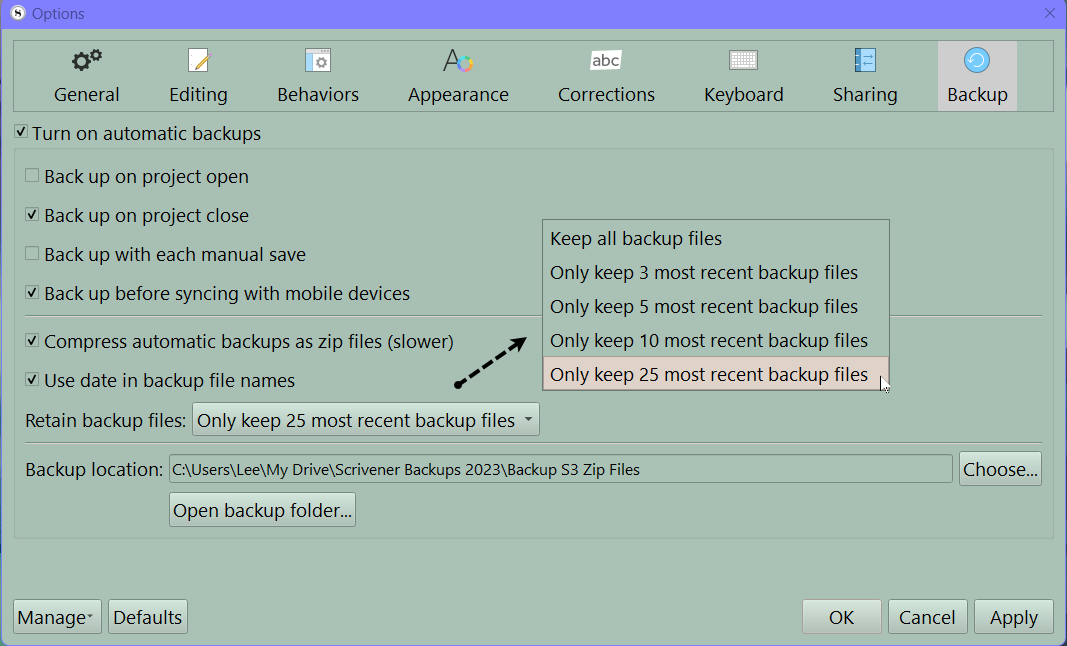
Recommended Backup Settings:
Turn on Automatic backups
Backup up on close
Backup with manual save
Compress automatic backups as zip files
Backup before syncing with mobile devices ***** to prevent sync overwrite.
You have options on the number of backups you keeps from 5 to 25, or even every backup. If you have the room 25 may be the sweet spot. If your project gets corrupted, you may backup a corrupted multiple times when you close it before realizing the issue. 5 backups may not protect against losing your work. When you have 5 backups, remember when you backup a sixth time, the first backup is deleted by Scrivener to keep the number of backups constantly at 5.
Ensure your projects are saved in a location DIFFERENT then the folder where your live projects are saved. Also consider storing zip backups on a cloud drive (set to keep a local copy) as an extra backup layer for your files.
Click Apply button when finished changing your settings.
Scrivener Tip: When actively writing a novel project, considering using the Menu command File> Backup to option to save backups of your active writing project to an external location like a USB key or external drive for extra insurance in case of problems.
Updated 9/28/26